


Bluesky is growing fast. If you spend a bit of time on it, you will notice that the people who grow are the ones who stay active, post often, and interact with others in their niche.
But you cannot stay online all day. Even if you try, it gets exhausting to keep coming up with posts, replying to comments, and staying consistent every day.
I ran into this exact situation.
I wanted to stay active and test content ideas, but I did not want to sit in front of my screen every few hours just to post or reply manually.
So I built a simple automation bot that handles the basic work for me.
It logs into my account, generates content with AI, and posts automatically, without needing a server or paid hosting.
In this guide, I will walk you step by step through the same process so you can build your own Bluesky automation bot using GitHub Actions for free hosting and Gemini AI for content generation.
By the end, you will understand how it works and have your own bot running.
Step 1: Getting Your Credentials (The Keys)
Before your bot can do anything useful, it needs access to your account and a way to generate content. This step is about setting up those keys.
Take your time here because this is where most beginners make small mistakes that later break the whole setup.
Bluesky App Password
You should never use your main Bluesky password for automation, because if anything goes wrong or the script is exposed, you risk losing control of your account.
Bluesky solves this by allowing you to create an App Password, which is a separate password designed specifically for tools like bots and automation scripts.
Here is how you create one:
- Open Bluesky and go to "Settings"
- Navigate to the "Privacy and Security" section
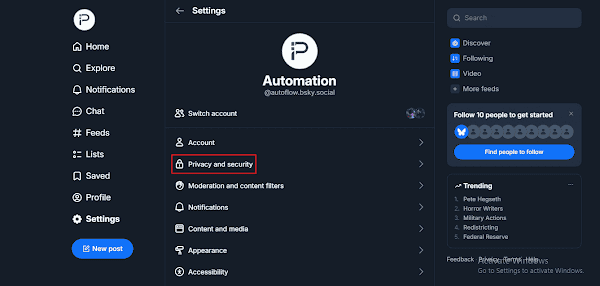
- Find and click on "App Passwords"
- Click "Add App Password" and give it a name (like
AutomationBot) - Once you click "Next," Bluesky will show you a unique code. Copy this immediately.
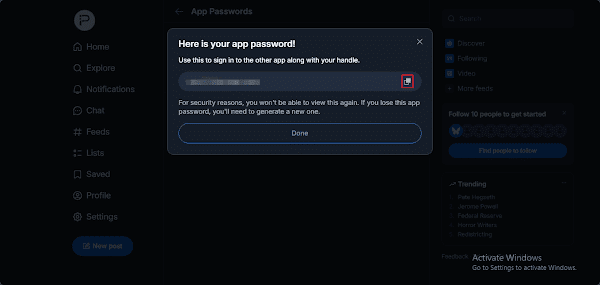
Warning: Bluesky will only show the password once. If you close that window without copying it, you have to delete it and start over.
This password is what your bot will use to log in securely.
Gemini API Key
Now your bot can access your account. Next, it needs a way to create content. That is where Gemini AI comes in.
Gemini will generate posts for your bot, so you do not have to write everything yourself.
To get your Gemini API key:
- Visit the official Google AI Studio site
- Log in with your Google account
- On the left-hand sidebar, click on the "Get API Key" icon (it looks like a small key)
- Click the button that says "Create API key"
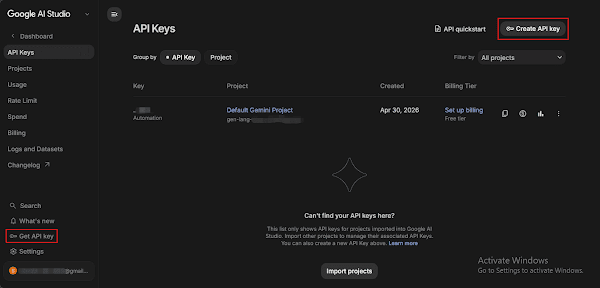
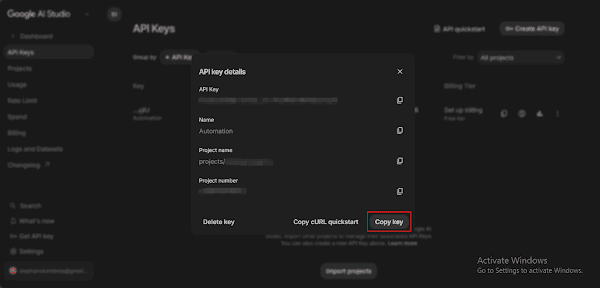
- A window will appear. Enter a clear name like
Automationso you remember what it's for later - Once you click "Create key" the system generates the key, click the Copy button. Store it somewhere safe, because you will need it inside GitHub.
At this point, you have everything you need to move forward, including your Bluesky access and your AI content generator.
Step 2: Setting Up GitHub Actions
Now that your keys are ready, it is time to connect everything and run your bot. This is where GitHub Actions comes in to run your bot automatically without you needing to keep your computer on.
Fork the Repository
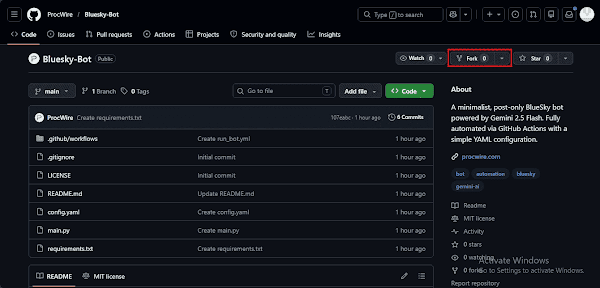
- Visit the project repository: Procwire/Bluesky-Bot.
- Click the Fork button in the top-right corner. This creates your own copy that you can edit and run safely.
Add Your Secret Keys
GitHub needs your API keys to run the bot, but you should never paste them directly into the code. That is not secure. So instead you will use "GitHub Secrets" to store them safely.
- Open your forked repository, go to Settings (the gear icon).
- In the left sidebar, click Secrets and variables → Actions.
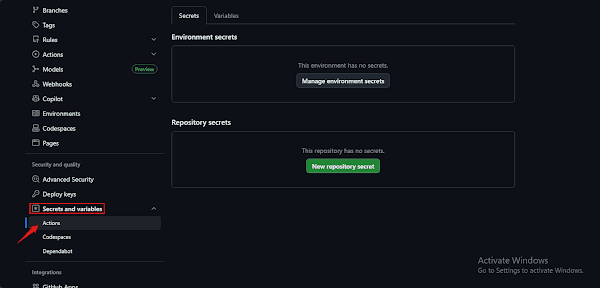
- Click the New repository secret button for each of the following:
| Secret Name | Value to Paste |
|---|---|
GEMINI_API_KEY |
The API key you got from Google AI Studio. |
BSKY_HANDLE |
Your Bluesky username (e.g., yourname.bsky.social). |
BSKY_PASSWORD |
The App Password you created in Bluesky. |
Add your keys one by one and make sure each name and value is correct. Even a small mistake here can stop the bot from working.
Once you finish this step, your bot will be able to log in and generate content without exposing your credentials.
Running the Bot Manually
Before you let the bot run automatically, it is a good idea to test it once so you can confirm everything is working as expected.
- Go to the Actions tab at the top of your repository.
- Click the link that says "I understand my workflows, go ahead and enable them" (if prompted).
- On the left, click on "BlueSky Automation Logged".
You will see an error saying "This scheduled workflow is disabled because scheduled workflows are disabled by default in forks." just click
Enable workflow - Click the Run workflow dropdown button and hit the green Run workflow button.
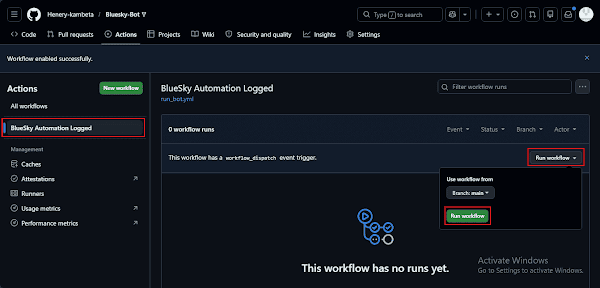
Wait about a minute. If everything is set up correctly, you should see a successful run with a green checkmark, which means your bot has completed its task.
Step 3: Understanding the Schedule
The bot is currently set to post four times a day automatically. This is controlled by a "Cron Schedule" inside the .github/workflows/run_bot.yml file.
Current Posting Times (UTC):
The code you have is set to run at these specific times:
0 7 * * *→ 07:00 AM30 10 * * *→ 10:30 AM0 14 * * *→ 02:00 PM0 18 * * *→ 06:00 PM
How to Edit the Schedule
If you want your bot to post more or less often, follow these steps:
- Open the file
.github/workflows/run_bot.ymlin your browser. - Click the pencil icon to edit.
- Change the numbers in the cron lines. The format is:
Minutes Hours Day-of-Month Month Day-of-Week.
Examples:
- To post every hour:
- cron: '0 * * * *' - To post only once a day at midnight:
- cron: '0 0 * * *'
Click Commit changes to save. Your bot will now follow your new schedule!
Step 4: Customizing Your Bot
Now that your bot is working, the next step is to control what it posts. By default it will follow whatever is written in the config.yaml file.
This file controls your bot’s personality, topics, and writing style. Even small changes here can change how your bot behaves.
Open the Config File
Inside your repository, locate the config.yaml file and open it. Focus only on a few sections so you do not get overwhelmed.
Change the Bot Personality
Look for this part:
bot_identity:
  name: "WorkflowArchitect"
  persona: "You are an expert in AI-driven automation and software efficiency. You post high-value, technical tips for developers."
The persona controls how your bot sounds when it writes posts. If you want your bot to sound more simple, more technical, or more conversational, this is the place you adjust it.
Change the Topics
Next, look for the topic_pool:
  topic_pool:
    - "Automating data pipelines with Python and AI"
    - "Designing efficient GitHub Actions for CI/CD"
    - "Optimizing local LLM workflows for developers"
    - "Advanced prompt engineering for automated code generation"
    - "Bash scripting for Linux environment automation"
    - "Integrating n8n with custom Python nodes"
    - "The future of autonomous AI agents in DevOps"
This is what your bot will post about.
If these topics do not match your niche, your content will feel off, so update them to fit your audience.
Adjust How Posts Are Written
Now check the post_prompt section:
  post_prompt: >
    Persona: {persona}
    Topic: {topic}
    Task: Write a technical, professional, and concise BlueSky post.
    Requirements:
    - Provide one actionable 'pro-tip' or insight.
    - No fluff. Use technical terminology correctly.
    - Include 2 relevant hashtags at the end.
    - Total length must be under 270 characters.
This tells the AI how to write. You do not need to change much here, but you can make it sound more natural by guiding it a bit more clearly.
You do not need to edit everything in this file. Just focus onpersona,topic_poolandpost_promptOnce you update these, your bot will start posting content that actually matches your style and audience.
Save the file, run your bot again, and you will immediately notice the difference.
Turn Your Bot Into a Growth Machine
At this point, you already have a working bot that can post automatically. This is a good start, but if you want to grow on Bluesky, basic automation is not enough.
Posting helps with consistency, but real growth comes from interaction, timing, and content quality. That is where a more advanced system makes a big difference.
Elevate Your Bluesky Presence with "Bluesky AI Automation Bot"
If you want something more powerful than a simple posting bot, this is where Bluesky AI Automation Bot comes in.
Bluesky AI Automation Bot is more than a simple posting script. It is a full automated system for content creation, engagement and interaction.
Instead of using one AI model, it uses multiple models to to generate better content and respond more intelligently.
The "Superpowers" of Bluesky AI Automation Bot
| Feature | What it Does for You |
|---|---|
| Multi-Model Intelligence | Powered by Gemini 3.1 Pro & Flash. It generates high-quality, context-aware content tailored specifically to your voice. |
| Autonomous Daily Posts | Automatically pulls from custom topic pools (Marketing, Tech, Fitness, etc.) to share high-value insights daily. |
| AI-Generated Visuals | Integrated with Hugging Face (FLUX.1 & SDXL) to generate stunning, custom images for every post automatically. |
| Smart Engagement | Scans for keywords to Like, Repost, Reply, and Follow leaders and potential followers in your industry. |
| Deep Conversation Engine | Handles notifications and threaded replies, keeping your audience engaged 24/7. |
| Human-Centric Stealth | Built-in "Stealth Breaks" and random delays to mimic human behavior and keep your account safe. |
| Auto-Facet Parsing | Automatically formats URLs and Hashtags for a professional look and better SEO discovery. |
See it in Action (Live Demo)
If you want to see how this works in a real environment, you can check a live demo account where the system is already running, posting content, replying to users, and generating visuals automatically.
👉 View Demo Account: @autoflow
Ready to Automate Your Brand?
If you want to grow your presence on Bluesky, whether for personal branding, content creation, or business, setting up a more advanced automation system can save you time and improve your results.
Buy it NowFinal Thoughts
Automation does not need to be complicated or expensive to work, especially when you use tools like GitHub Actions and AI models to handle the heavy work for you.
Pro-tip: Once your bot is live, don't let it run blindly. Check out my guide on how to build a free Python uptime monitor to get instant Discord or Telegram alerts if your automation APIs ever encounter an issue.
If this guide helped you, share it with someone trying to learn automation or grow on Bluesky. It might save them a lot of time.
If you run into any issues or get stuck on a step, or just want to share how your bot is working, leave a comment below and I will help you out.




Comments